Few smartphone problems are more frustrating than plugging in your iPhone and realizing it isn’t charging. Whether you’re trying to power up before work, charge overnight, or top off your battery during the day, a charging issue can quickly disrupt your routine.
The good news is that many iPhone charging problems are caused by simple issues that can be fixed without replacing the phone or paying for expensive repairs. From dirty charging ports and damaged cables to software glitches and battery health concerns, there are several possible explanations.
If your iPhone won’t charge, charges slowly, or only charges intermittently, this guide will walk you through the most common causes and practical solutions that can help get your device working again.
Why Your iPhone May Not Be Charging
Charging problems can originate from several different sources.
The issue may involve:
- The charging cable
- The power adapter
- The charging port
- The battery
- iOS software
- Wireless charging components
- Environmental conditions
Identifying the root cause is the first step toward solving the problem.
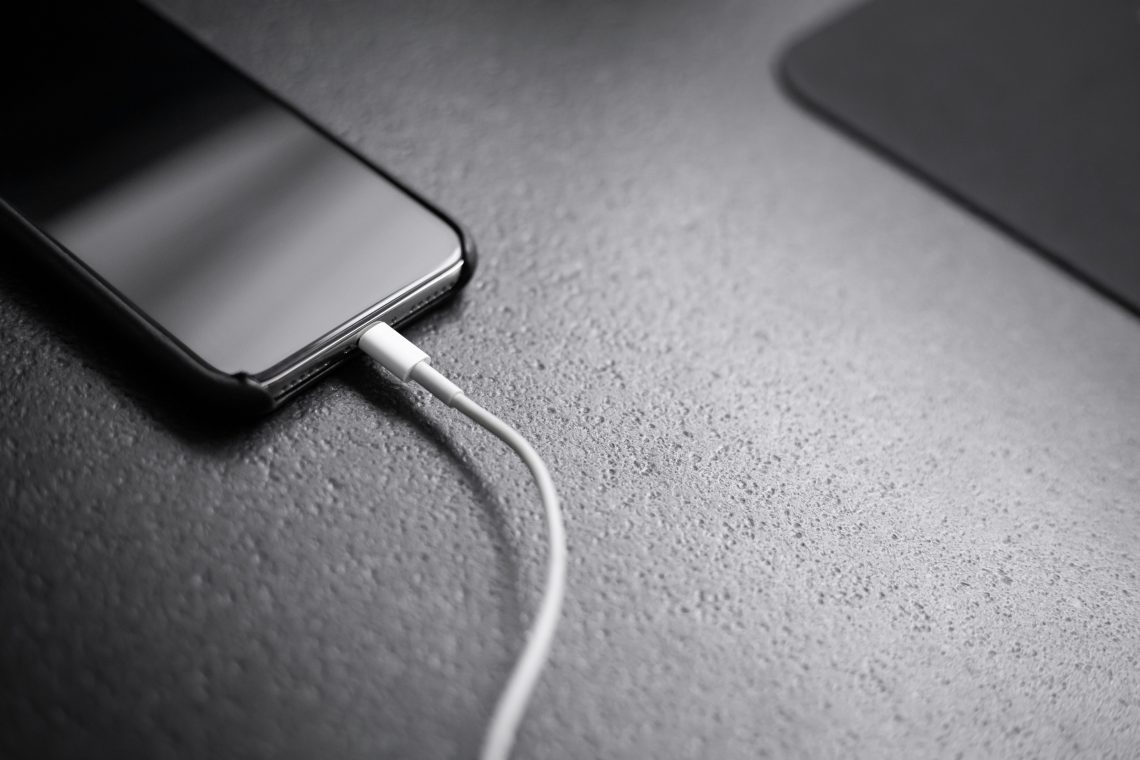
Check Your Charging Cable First
One of the most common causes of charging issues is a damaged cable.
Charging cables experience significant wear and tear. Constant bending, twisting, and unplugging can eventually damage internal wires.
Common signs of cable failure include:
- Frayed ends
- Exposed wiring
- Bent connectors
- Intermittent charging
Solution
Try using a different Apple-certified charging cable.
If the new cable works immediately, you’ve found the problem.
Avoid using low-quality third-party cables, as they may not deliver consistent power and can cause charging issues over time.
Inspect the Power Adapter
Many users focus on the cable while overlooking the charging adapter.
Adapters can fail due to age, electrical surges, manufacturing defects, or physical damage.
Solution
Test your iPhone using:
- A different wall adapter
- A USB port on a computer
- A power bank
- Another charging source
If charging works with a different adapter, replace the original power brick.
A Dirty Charging Port Is Extremely Common
Lint, dust, pocket debris, and dirt frequently collect inside the charging port.
Even a small amount of buildup can prevent proper contact between the charging cable and the device.
This is especially common among users who carry their phones in pockets every day.
Signs of a Dirty Port
You may notice:
- Loose cable connections
- Charging that starts and stops
- The cable not fully inserting
- Slow charging speeds
Solution
Carefully inspect the charging port using a flashlight.
If debris is visible:
- Turn off the iPhone.
- Use a wooden toothpick or soft anti-static tool.
- Gently remove debris.
- Avoid using metal objects.
Many charging problems are solved simply by cleaning the port.
Restart Your iPhone
Software glitches occasionally interfere with charging functions.
Although uncommon, background processes can become stuck and affect battery management.
Solution
Perform a restart.
For newer iPhones:
- Press and hold the side button and volume button.
- Slide to power off.
- Wait 30 seconds.
- Turn the device back on.
This simple step often resolves temporary software-related charging issues.
Check Battery Health
As iPhone batteries age, charging performance may decline.
Older batteries can exhibit symptoms such as:
- Slow charging
- Rapid battery drain
- Unexpected shutdowns
- Inconsistent charging behavior
How to Check Battery Health
Navigate to:
Settings → Battery → Battery Health & Charging
Review the Maximum Capacity percentage.
Generally:
- 90%–100% = Excellent
- 80%–89% = Normal aging
- Below 80% = Battery replacement may be beneficial
Battery degradation is a normal part of ownership but can eventually affect charging performance.
Ensure the Device Isn’t Overheating
iPhones contain built-in temperature protection systems.
If the device becomes too hot, charging may pause automatically to protect internal components.
This behavior is completely normal.
Common Causes of Overheating
- Direct sunlight
- Hot vehicles
- Gaming while charging
- Video editing
- Intensive applications
Solution
Move the device to a cooler environment.
Remove thick protective cases if necessary and allow the phone to cool before attempting to charge again.
Update iOS
Occasionally, charging problems stem from software bugs.
Apple regularly releases updates that address battery management, charging behavior, and system stability.
Solution
Check for updates:
Settings → General → Software Update
Installing the latest version of iOS may resolve charging-related software issues.
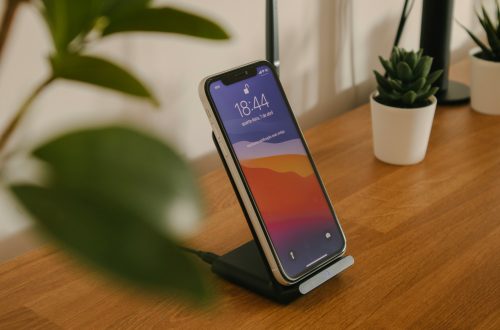
Wireless Charging Problems
Many modern iPhones support wireless charging.
If wireless charging suddenly stops working, several factors could be responsible.
Possible Causes
- Misalignment on the charging pad
- Thick phone cases
- Foreign objects between charger and phone
- Charger compatibility issues
Solution
Remove the case temporarily and reposition the phone.
Ensure the charging pad is certified and connected to a sufficient power source.
Testing with another wireless charger can help isolate the problem.
Try a Forced Restart
When a standard restart doesn’t work, a forced restart may help.
This process refreshes system functions without deleting your data.
For Most Modern iPhones
- Press Volume Up.
- Press Volume Down.
- Press and hold the Side Button.
- Release when the Apple logo appears.
This can resolve deeper software glitches affecting charging behavior.
Water or Moisture Detection May Stop Charging
Modern iPhones include moisture detection systems.
If water is detected in the charging port, the device may temporarily prevent charging to protect internal electronics.
Warning Signs
You may see alerts such as:
“Liquid Detected in Lightning Connector”
or
“Charging Not Available”
Solution
Disconnect the charger.
Allow the phone to air dry naturally.
Avoid:
- Hair dryers
- Compressed air
- Rice
Once moisture evaporates, charging should resume normally.
Background Apps May Affect Charging Speed
Some users assume their phone isn’t charging when it is actually charging very slowly.
Resource-intensive apps can consume power faster than the charger supplies it.
Common Battery-Intensive Activities
- Mobile gaming
- Video streaming
- GPS navigation
- Video calls
- Social media apps
Solution
Close unnecessary apps while charging.
For faster charging:
- Enable Low Power Mode
- Lock the screen
- Avoid heavy usage during charging
Fast Charging Expectations
Many users expect instant charging.
However, charging speed depends on:
- Adapter wattage
- Cable quality
- Battery health
- Temperature
- Current battery level
Solution
Use an appropriate fast-charging adapter and certified cable.
Remember that charging slows automatically as the battery approaches full capacity to preserve battery health.
When MagSafe Stops Working
MagSafe charging is generally reliable, but issues can occur.
Common MagSafe Problems
- Accessory misalignment
- Case interference
- Dirty charging surfaces
- Damaged charging puck
Solution
Clean both surfaces and verify proper alignment.
Testing with another MagSafe charger can quickly determine whether the charger itself is faulty.
Reset Settings If Necessary
If all else fails, resetting settings may resolve unusual charging behavior.
This does not erase personal data.
Solution
Go to:
Settings → General → Transfer or Reset iPhone → Reset → Reset All Settings
This restores system settings to their defaults while preserving photos, apps, and files.
When Hardware Damage Is the Problem
Sometimes charging issues result from physical damage.
Potential hardware failures include:
- Damaged charging ports
- Faulty batteries
- Logic board issues
- Internal connector damage
Common causes include:
- Drops
- Water exposure
- Electrical surges
- Long-term wear
If multiple charging accessories fail to work, hardware damage becomes more likely.
Signs You May Need Professional Repair
Consider professional diagnosis if:
- The phone never recognizes a charger
- Charging only works at specific angles
- The battery swells
- The device overheats excessively
- The charging port appears damaged
Addressing hardware issues early may prevent more serious problems later.
Final Thoughts
An iPhone that won’t charge can be alarming, but the problem is often easier to fix than many users expect. Damaged cables, faulty adapters, dirty charging ports, software glitches, overheating, and battery aging are among the most common causes.
By systematically checking each potential issue, many users can restore normal charging without replacing their device. Start with the simplest fixes, such as testing a different cable, cleaning the charging port, and restarting the phone. If those steps don’t work, reviewing battery health and software settings can often reveal the underlying cause.
With a little troubleshooting, there’s a good chance your iPhone can return to charging normally and continue serving you reliably for years to come.