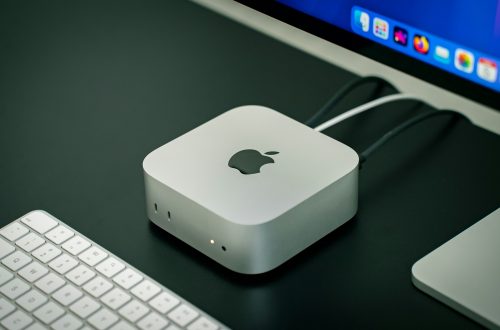
One of the most frustrating issues Apple desktop users encounter is a Mac that refuses to wake from sleep mode. You move the mouse, tap the keyboard, press the power button, and nothing seems to happen. Sometimes the screen remains black, while other times the computer appears partially awake but unresponsive.
When this happens, many users immediately assume their Mac has suffered a major hardware failure. Others believe the logic board is dying or that macOS has become corrupted. While those situations can occur, they’re actually far less common than many people think.
The truth is that sleep-related issues often have surprisingly simple explanations. Understanding the most common myths and real causes can help you troubleshoot the problem quickly and avoid unnecessary repairs.
Why Sleep Mode Exists on Apple Desktops
Sleep mode is designed to reduce power consumption while allowing your Mac to resume work quickly.
Instead of shutting down completely, the computer preserves your session while reducing activity from certain hardware components.
Benefits include:
- Lower energy usage
- Faster startup times
- Reduced wear on components
- Improved convenience
However, because multiple hardware and software systems participate in sleep mode, occasional wake-up problems can occur.
Myth #1: A Black Screen Means the Mac Is Dead
Many users assume that if the display remains black, the entire computer has failed.
In reality, the Mac itself may still be functioning normally while the display connection is experiencing problems.
This is especially common with:
- External monitors
- Display adapters
- Multi-monitor setups
- Docking stations
The Real Solution
Before assuming the computer is dead:
- Check monitor power
- Verify cable connections
- Disconnect and reconnect display cables
- Test another monitor if available
Many apparent sleep failures turn out to be display-related rather than computer-related.
External Displays Often Cause Wake Issues
Apple desktop systems frequently rely on external monitors.
Sometimes the monitor wakes slower than the computer itself, creating the impression that the Mac is frozen.
Certain display models are more prone to synchronization delays.
Solution
If the display remains black:
- Turn the monitor off.
- Wait several seconds.
- Turn it back on.
- Disconnect and reconnect the display cable.
This simple step resolves many wake-related complaints.
Myth #2: Pressing the Power Button Repeatedly Helps
When a Mac doesn’t wake immediately, many users repeatedly press the power button.
This often creates additional confusion because it can trigger shutdown sequences or force restarts.
The Real Solution
Wait a few moments before taking further action.
Sometimes background processes delay the wake process temporarily.
If the system remains unresponsive after a reasonable period, then proceed with troubleshooting.
Bluetooth Devices Can Be Part of the Problem
Apple desktops often rely on wireless keyboards and mice.
If Bluetooth communication is interrupted, users may believe the Mac isn’t waking when the real issue is that the input devices aren’t reconnecting.
Solution
Check:
- Keyboard battery levels
- Mouse battery levels
- Bluetooth connectivity
Connecting a wired keyboard temporarily can help determine whether Bluetooth is involved.
Myth #3: Sleep Mode Damages Hardware
A surprisingly persistent myth suggests that regularly using sleep mode shortens hardware lifespan.
Modern Apple desktops are specifically designed to enter and exit sleep mode safely.
Sleep mode itself rarely causes hardware damage.
The Real Solution
Continue using sleep mode normally.
Focus on diagnosing specific wake issues rather than avoiding sleep mode entirely.
Apple engineers design these systems to handle frequent sleep cycles.
Software Updates Can Affect Sleep Behavior
Occasionally users notice wake problems immediately after installing a macOS update.
This doesn’t necessarily mean the update is defective.
After major updates, macOS often performs background tasks such as:
- Reindexing files
- Updating databases
- Synchronizing cloud content
These activities may temporarily affect sleep behavior.
Solution
Allow the system several hours or days to complete background optimization tasks.
Many post-update sleep issues resolve themselves automatically.
Myth #4: Wake Problems Always Mean Hardware Failure
This is one of the most expensive myths because it causes users to pursue unnecessary repairs.
Most sleep-related problems are actually caused by:
- Software settings
- Peripheral devices
- Display communication
- Power management settings
Hardware failure is often much lower on the list of possibilities.
The Real Solution
Investigate software and configuration issues before assuming physical hardware damage.
A methodical troubleshooting approach usually saves time and money.
Energy Saver Settings Can Create Confusion
macOS contains numerous power management options.
Users sometimes change settings without fully understanding how they affect sleep behavior.
Important Areas to Review
Check:
System Settings → Energy
Review settings related to:
- Display sleep
- Hard disk sleep
- Network wake functions
- Power adapter behavior
Incorrect configurations occasionally contribute to wake problems.
Myth #5: You Should Never Let a Mac Sleep
Some users react to sleep issues by disabling sleep entirely.
While this may temporarily avoid the symptom, it doesn’t address the underlying cause.
It can also increase energy consumption unnecessarily.
The Real Solution
Identify the actual source of the problem rather than disabling useful features.
Sleep mode remains beneficial for most users.
USB Devices Can Interfere With Sleep
Peripheral devices are an often-overlooked source of wake issues.
Examples include:
- USB hubs
- Printers
- Audio interfaces
- External drives
- Docking stations
Certain devices may prevent proper sleep transitions or interfere with waking.
Solution
Disconnect nonessential peripherals temporarily.
Observe whether the wake issue disappears.
Reconnect devices individually to identify any problematic hardware.
Network Activity May Affect Sleep Functions
Some Macs are configured to wake automatically for network access.
This feature can occasionally create unusual sleep-related behavior.
Solution
Review network wake settings.
Disabling unnecessary wake-for-network functions may improve reliability.
Users who don’t require remote access often benefit from simpler configurations.
Myth #6: Force Shutdown Is Always the Best Fix
When a Mac appears frozen, users often jump immediately to a forced shutdown.
Although this sometimes restores functionality, it should not become the default solution.
Frequent forced shutdowns increase the risk of:
- File corruption
- Incomplete updates
- Unsaved work loss
The Real Solution
Attempt normal troubleshooting first.
Reserve forced shutdowns for situations where the system remains completely unresponsive.
Storage Space Can Affect System Stability
Many users don’t realize that insufficient free storage can contribute to a variety of strange behaviors.
macOS relies on free storage for:
- Virtual memory
- Temporary files
- System processes
A nearly full drive can create unpredictable performance issues.
Solution
Maintain adequate free storage space.
Many experts recommend keeping at least 10% to 20% of storage capacity available.
Resetting Power Management May Help
Occasionally, power-related settings become corrupted.
Modern Macs automatically manage many low-level power functions, but resets can still help in certain situations.
Solution
Follow Apple’s current troubleshooting recommendations for your specific Mac model.
Power management resets often resolve unusual sleep and wake behaviors.
Signs of an Actual Hardware Problem
While software issues are more common, hardware failures do occur.
Potential warning signs include:
- Random shutdowns
- Failure to power on
- Persistent display issues
- Repeated kernel panics
- Unusual hardware noises
If these symptoms accompany wake problems, professional diagnosis may be appropriate.
Preventing Future Sleep Issues
A few simple habits can reduce the likelihood of future problems:
- Keep macOS updated
- Maintain free storage space
- Limit unnecessary startup items
- Disconnect unused peripherals
- Update accessory firmware
- Restart periodically
Preventive maintenance often improves overall system stability.
Why Sleep-Related Myths Continue to Spread
Many wake-related myths originated years ago when computer hardware and operating systems were far less sophisticated.
Modern Apple desktops use advanced power management technologies that behave differently than older systems.
As a result, outdated troubleshooting advice often creates more confusion than solutions.
Understanding how current Apple hardware handles sleep functions helps users make better decisions when problems arise.
Final Thoughts
A Mac that won’t wake from sleep can be alarming, but the problem is frequently less serious than it appears. Display communication issues, Bluetooth peripherals, USB devices, software settings, storage limitations, and temporary background processes are among the most common causes.
Rather than assuming catastrophic hardware failure, it’s important to investigate the more likely explanations first. Most sleep-related problems can be resolved through simple troubleshooting steps without replacing expensive components.
By separating myths from reality and understanding how Apple desktop power management actually works, users can solve wake issues more efficiently, avoid unnecessary repairs, and keep their Macs running reliably for years to come.